Collaborative NAS

To make working together in such a large team possible, we use a NAS to share files and resources. To connect to this NAS you need to use SMB to mount the drive on your computer. 

Windows SMB Connection

Windows

In file explorer, right click "Network" in the sidebar, then click "Map network drive".
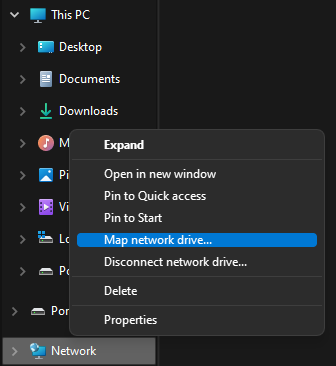
Map_network_driver.png

Now enter in the server SMB uri "\\192.168.69.20\main", the drive letter doesn't matter, select "Connect using different credentials".
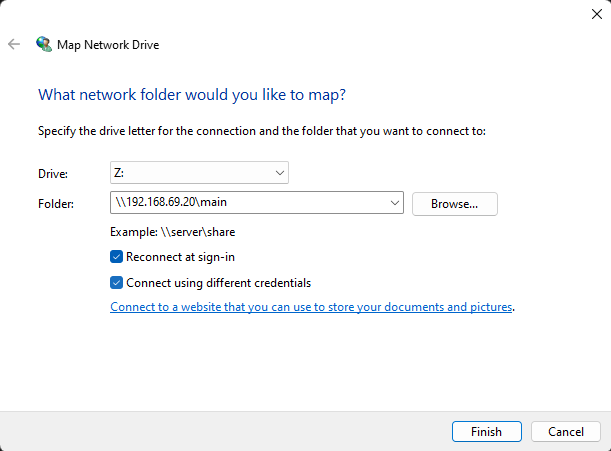
Map_drive_screen.png

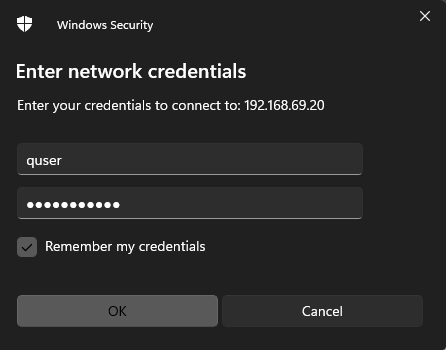
Enter in these credentials

Username quser
Password noquestions

login.png

Done! You should now see the drive show up in file-explorer, and it should act like you have another drive plugged into your computer.
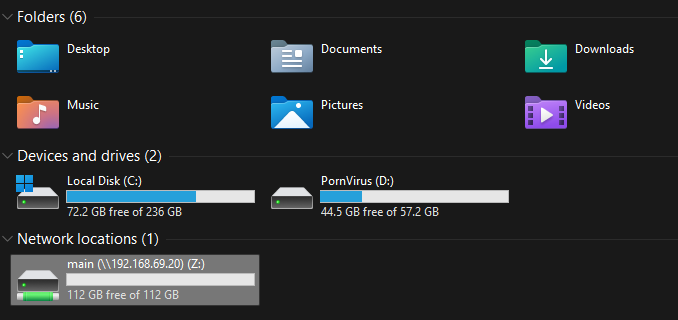
PornVirus.png

MacOS SMB Connection

  1. From the Finder menu, click Go.
  2. Click Connect to Server from Go’s drop down menu.
  3. Alternatively, you can also press Command+K to launch Connect to Server.
  4. In the Server Address field, enter smb://192.168.69.20/main
  5. To add the server to your Favorite Servers list, click the ‘+’ button.
  6. Click Connect to connect to the share.
  7. When prompted, enter this username and password combo
    Usernamequser
    Passwordnoquestions

  8. Click Connect to connect to the server.
  9. Violà! Once the connection is made, the share you have access to will appear on your desktop